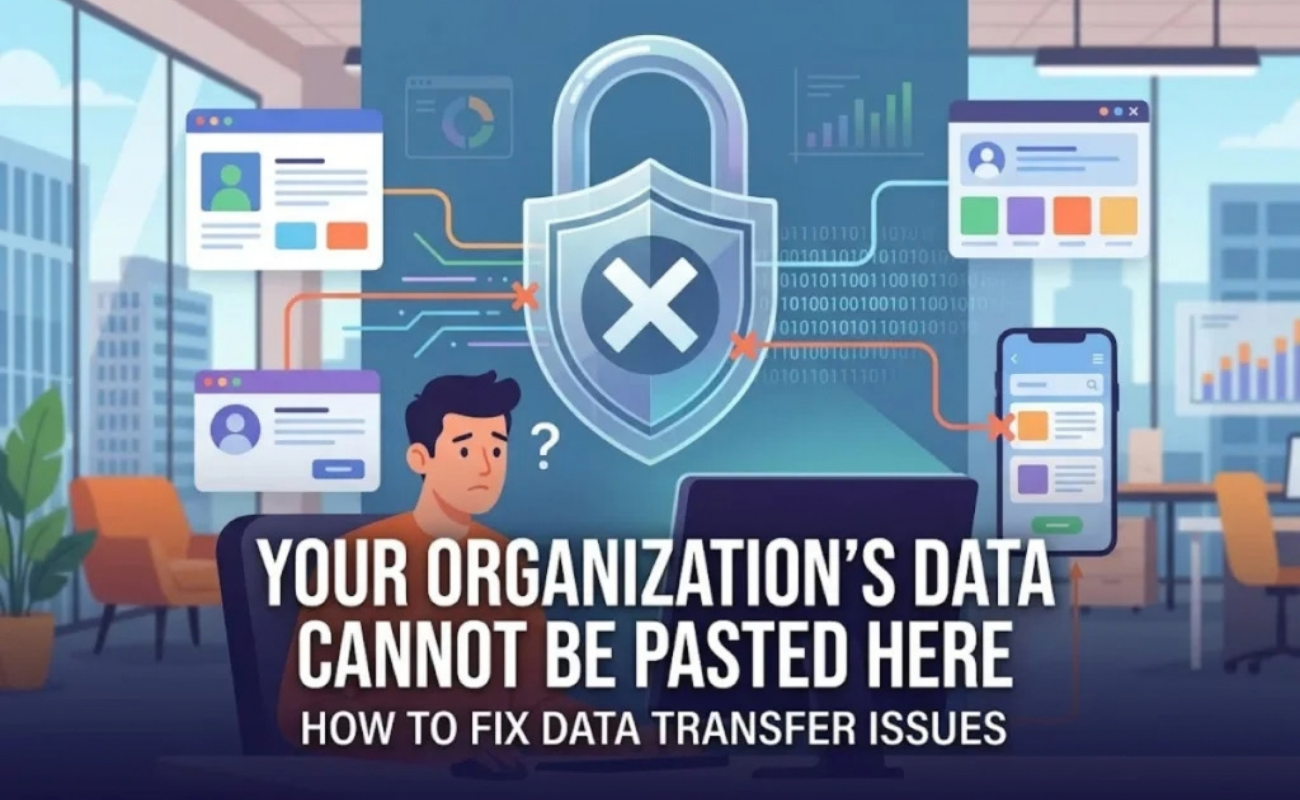
You copy a sentence from Outlook. You go to paste it somewhere else. And then it appears. That cold little message: “Your organization’s data cannot be pasted here.”
No warning. No explanation. Just a hard no message for pasting your personal data here.
If this just happened to you, take a breath. Your computer is not broken. This is not a virus. It is a security feature, and in this guide we will explain exactly what it means and how to fix it in minutes.
What Does This Error Message Actually Mean?
Here is the simple version. Your company uses a Microsoft tool called Intune to manage work data on your device. Intune has a setting that controls copy and paste. Its job is to stop company information from leaking into personal apps.
So when you copy text from your work Outlook and try to paste it into a personal app, WhatsApp, or even a browser in some setups, Intune steps in and blocks it. That message is Intune saying no.

It happens most on personal phones and laptops that also touch work accounts, what IT people call bring your own device setups. That mix of work and personal on one device is exactly where these rules bite hardest.
Why Does It Happen in the First Place?
There are a few common triggers, and knowing which one you have makes fixing it much faster.
First, your company’s policy may simply be strict. Many organizations limit copying to “policy-managed apps” only, which means paste works between Outlook and Word, but not into anything personal. This is often tied to compliance rules like GDPR or HIPAA, so companies take it seriously.

Second, your Office apps might be outdated. Older versions of Word, Excel, or Outlook sometimes misread the policy and block pasting even inside approved apps.
Third, the file itself might be the problem. Documents from email attachments open in Protected View, a locked mode that blocks editing and copying until you click Enable Editing.
Read Also: BLS E-Services IPO GMP: A Simple Guide to Understanding This Thing
How Do You Fix It on Windows?
Start with the easy stuff. A simple restart clears cached policy data and fixes false blocks surprisingly often. Save your work, restart, and test paste again.
If that fails, update your Office apps. Open any Office app, go to File, then Account, then Update Options, then Update Now. Old versions argue with Intune, and updates smooth that out.
Next, check your clipboard settings. Go to Settings, then System, then Clipboard, and turn off clipboard history and the sync between devices. Microsoft support advisors say this step alone solved the problem for many users. While you are there, open Settings, then Accounts, then Email and accounts, and remove any old work accounts you no longer use. Then open each Office app, go to File, then Account, and sign out of anything that is not your personal account.
If you use Edge and the problem continues, clear the cache under Settings, then Privacy, then Clear browsing data, and select cache only.
How Do You Fix It on Android and iPhone?
On mobile, the fix is a little different. First, try the long press. Instead of tapping paste from the quick menu, hold your finger on the text field and choose Paste from the popup. On Gboard and Samsung keyboards, the restriction sometimes shows as a suggestion rather than a full block, and the long press gets through.
If that does not work, clear the cache of the Company Portal app. Go to Settings, then Apps, then Company Portal, then Storage, then Clear Cache. This forces a fresh policy sync without removing your work setup. On iPhone, make sure the Microsoft Authenticator app is updated, since iOS relies on it for these policies.
And one more thing for iPhone users: if this is your personal phone, check Settings, then General, then VPN and Device Management. If your company installed a profile there, that profile controls the block, and removing it (or asking IT to) is the fix.
What If Nothing Works?
You still have options. Use the web version. Outlook on the web and Office Online sometimes follow different rules than the apps, and pasting often works fine there.

Try a brand new document. Sometimes a single file is corrupted and blocks pasting for no good reason. Paste into a fresh file and see what happens.
For files stuck in Protected View, click Enable Editing on the yellow banner at the top. That unlocks copying for that document.
And if your job truly needs paste freedom between apps, contact your IT department. Explain which apps you use and why. Admins can adjust the Intune policy under Data Transfer and allow your specific case while keeping security tight. Just know that policy changes can take around 30 minutes to reach your device, and you may need to restart the app.
Final Words
That scary message is not your enemy. It is your company’s security guard doing its job, just a little too enthusiastically sometimes. Most of the time, a restart, an Office update, or a clipboard setting fixes it in under five minutes. And if the policy itself is the wall, a quick chat with IT opens the door. Copy, paste, move on with your day. You have got this.
Read More: CCU Full Form Explained in Simple Words